
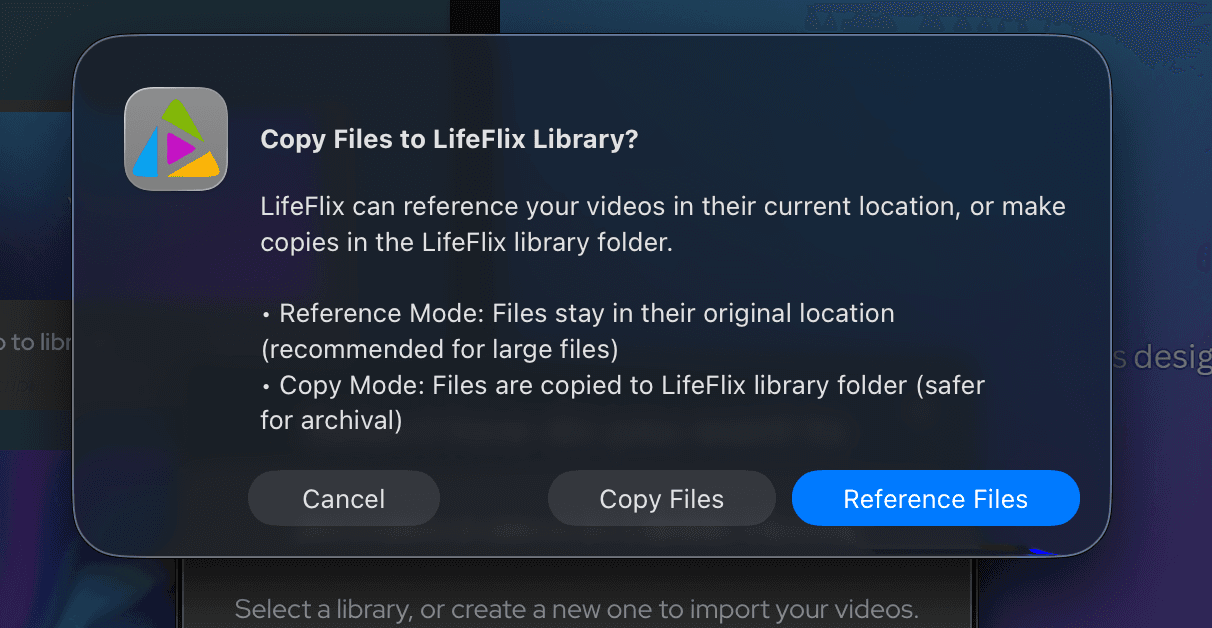
How to Use Reference Files in LifeFlix
If you’re importing large numbers of tapes or high-resolution videos, your Mac storage can fill up quickly. LifeFlix is a powerful Mac media library and media library software designed to help you manage digital memories efficiently. Its Reference Files feature allows you to store your media on an external SSD while keeping your media library fully organized and accessible inside the app.
This guide explains what Reference Files are, how to use them, and how they help with digital media storage on macOS without relying on cloud storage or online backups.
1. What Are Reference Files?
Normally, LifeFlix copies media into the LifeFlix folder inside your Movies directory.
With Reference Files enabled, LifeFlix:
- Leaves your tape files on an external SSD
- Adds them to your library without copying
- Saves storage and speeds up imports
LifeFlix requires SSD storage only for referencing because SSDs are:
- Fast
- Stable
- Reliable
- Always-ready drives
2. How to Enable Reference Files
- Open LifeFlix > Settings > Storage
- Turn on Reference Files
- Select your external SSD
- Import your tapes normally
LifeFlix will reference the files on your SSD instead of duplicating them.
3. When to Use Reference Files
Use Reference Files if you:
- Have large tape archives
- Want to save internal Mac storage
- Want faster imports
- Store media on an external SSD
Reference Files let LifeFlix store your media on an external SSD while keeping your library clean, organized, and lightweight. As long as your SSD stays connected and your LifeFlix folder stays in the Movies directory, everything will work smoothly.
Need help setting it up? We’re here for you anytime.
Most Popular
Join Our LifeFlix Community
Enter Your Email Address to Sign Up for Exclusive Updates!
Own your
memories
forever
withLifeFlix!
Related Guides
Exporting to NAS
Exporting to NAS - How to export your digitised footage directly to a NAS drive. Covers mounting, connection types, recommended devices, and best prac...
Read More ➜
End of Tape Marker Explained
End of Tape Marker Explained - LifeFlix stopped and said end of tape. Here is what that marker means, when it appears early, and what to do about it.
Read More ➜