
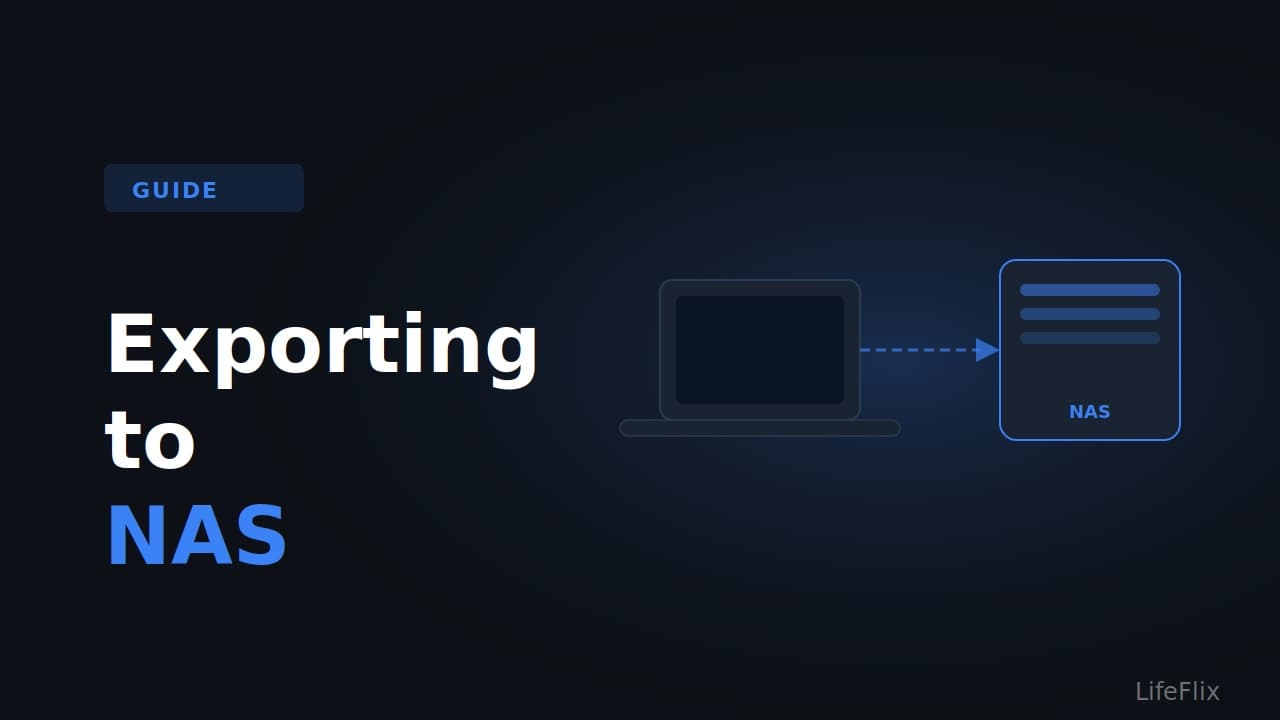
How to Export Your LifeFlix Videos to a NAS Drive
If you have digitised a large collection of tapes and want to store them on a Network Attached Storage device rather than a local hard drive, this guide walks through exactly how to set that up.
Why use a NAS for video storage?
A single 60-minute MiniDV tape digitised in LifeFlix produces around 13GB of video at full DV quality. A collection of 20 tapes is around 260GB. 100 tapes is over a terabyte. External hard drives work fine for smaller collections, but for families or archivists with large numbers of tapes, a NAS provides scalable storage, built-in redundancy through RAID, and the ability to access your footage from any device on your home network.
Step 1: Mount your NAS in Finder
Before LifeFlix can save to your NAS, the drive needs to be mounted and visible in Finder as a network location.
On your Mac, open Finder and press Command and K at the same time. In the Connect to Server window, type your NAS address. For most home NAS devices this will look like smb://192.168.x.x or smb://nas-name.local, replacing the values with your device's actual address. Click Connect and enter your NAS username and password if prompted. Your NAS should now appear in the Finder sidebar under Locations.
Step 2: Set LifeFlix export destination to your NAS
When exporting a video from LifeFlix, you will be prompted to choose a save location. Navigate to your NAS in the Finder panel that appears, select the folder you want to save to, and confirm. LifeFlix will write the exported file directly to the NAS over your network connection.
Step 3: Use a wired connection for large exports
Exporting large video files over Wi-Fi is slow and occasionally unreliable. If your NAS and Mac are both near your router, connect your Mac to the router via an Ethernet cable for the duration of any large export. A standard gigabit Ethernet connection transfers data at up to 100MB per second, which is significantly faster than typical Wi-Fi speeds for sustained large file transfers.
NAS compatibility notes
Most major NAS brands including Synology, QNAP, and Western Digital work with macOS via the SMB protocol, which is what macOS uses by default when connecting to network storage. You do not need any special settings in LifeFlix for this to work. As long as the NAS is mounted in Finder, LifeFlix treats it like any other storage location.
AFP (Apple Filing Protocol) was previously used by Apple for network drives but is now largely deprecated. If your NAS offers both SMB and AFP, use SMB.
Recommended NAS devices for video storage in 2026
For home use with moderate storage needs, the Synology DiskStation DS723 is a well-regarded two-bay NAS with strong macOS compatibility and Time Machine support. For larger collections, the Synology DiskStation DS1821 or QNAP equivalents offer more bays and better throughput.
For anyone using a NAS primarily to store digitised video and family footage rather than professional video editing workflows, a two-bay NAS with two 4TB drives in RAID 1 (mirrored) gives you 4TB of usable storage with automatic redundancy if one drive fails. That is enough for roughly 300 hours of DV quality footage.
One important note about capture vs export
LifeFlix captures video to your Mac's local storage first, then you export to the NAS. Do not attempt to capture directly to a NAS drive in real time. DV capture requires a consistent, high-speed write connection that network storage cannot always guarantee, especially over Wi-Fi. Capture locally, then move or export the finished files to your NAS once the import is complete.
Most Popular
Join Our LifeFlix Community
Enter Your Email Address to Sign Up for Exclusive Updates!
Own your
memories
forever
withLifeFlix!
Related Guides
Exporting to NAS
Exporting to NAS - How to export your digitised footage directly to a NAS drive. Covers mounting, connection types, recommended devices, and best prac...
Read More ➜
End of Tape Marker Explained
End of Tape Marker Explained - LifeFlix stopped and said end of tape. Here is what that marker means, when it appears early, and what to do about it.
Read More ➜