

Easy Guide To Editing Metadata on Library
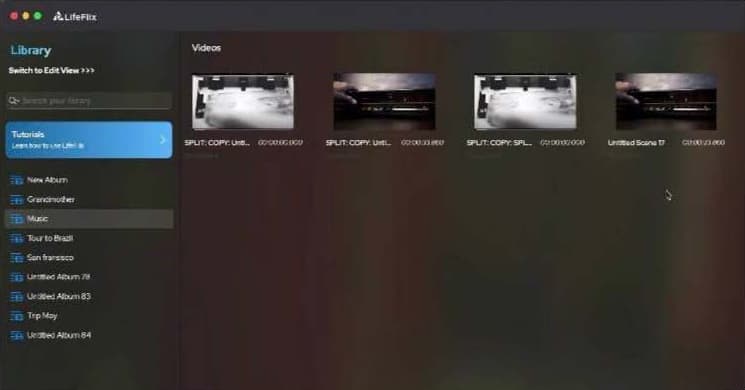
Step 1: Select Your Image or Video
Start by choosing the image or video whose metadata you’d like to edit. Once selected, it will appear on your screen as shown below.
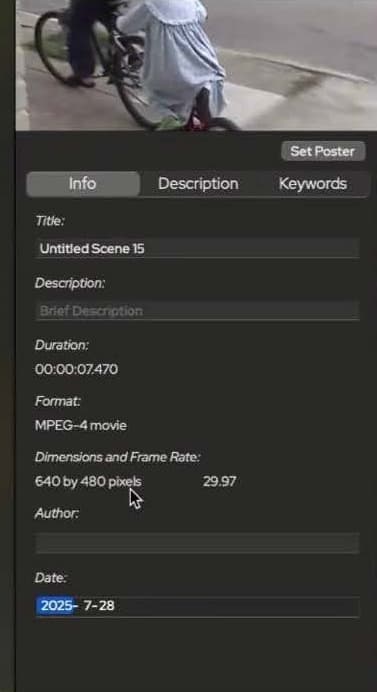
Step 2: View Metadata Sections
The metadata is organized into three main sections for easy viewing. Note that not all metadata fields are editable.
To check whether a section can be edited, simply click on it—if the “Edit Metadata” button at the bottom becomes active, you can make changes.
Step 3: Edit Metadata
Click the “Edit Metadata” button to start editing.
You can add new information in the Keywords, People, and Places sections. However, you cannot remove tags automatically generated by the AI.
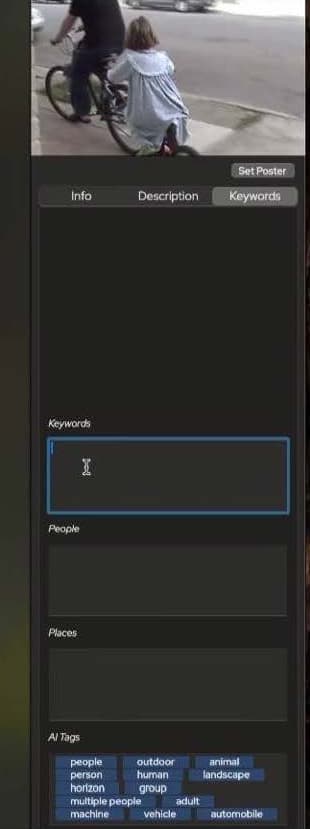
Step 4: Understanding AI-Generated Tags
AI-generated tags are automatically created based on what the system detects in your images. These tags help categorize your content, making it easier to search by relevant keywords, people, or locations.
Need Help?
If you encounter any issues or have feedback, please reach out through our Help page or contact us via our social channels.
Thank you for using LifeFlix Library!
Most Popular
Join Our LifeFlix Community
Enter Your Email Address to Sign Up for Exclusive Updates!
Own your
memories
forever
withLifeFlix!
Related Guides
Exporting to NAS
Exporting to NAS - How to export your digitised footage directly to a NAS drive. Covers mounting, connection types, recommended devices, and best prac...
Read More ➜
End of Tape Marker Explained
End of Tape Marker Explained - LifeFlix stopped and said end of tape. Here is what that marker means, when it appears early, and what to do about it.
Read More ➜