
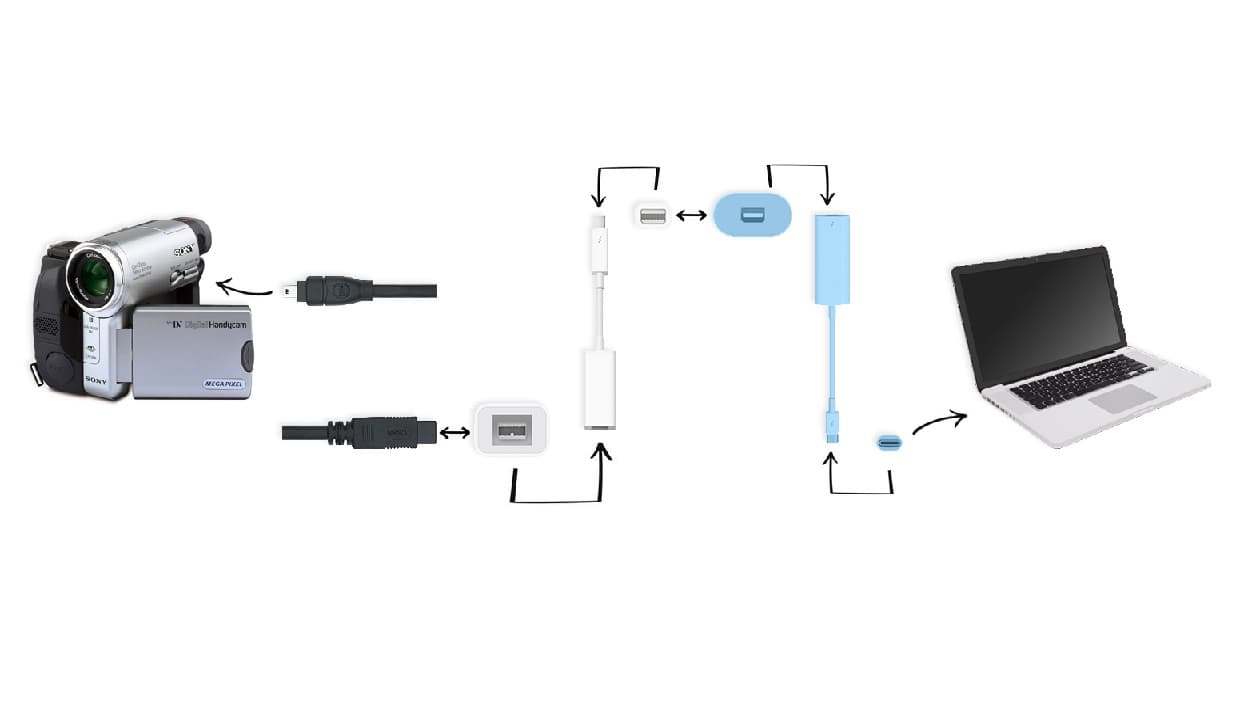
Transferring analog DV tapes from a camcorder to an Apple Mac computer involves several steps. Here’s a detailed guide to help you archive your DV tapes digitally:
What you'll need:
- Digital Video (DV) Device: Preferably the camcorder that originally recorded the tapes.
- DV to Firewire Cable 800 (1394B 800-400 IEEE)
- Apple Thunderbolt to FireWire 800 Adapter (A1463)
- Apple Thunderbolt 2 to Thunderbolt 3 USB-C (MMEL2AM/A)
- Mac Computer: Mac device equipped with appropriate ports or adapters.
- DV importing supports macOS 10.7 (Lion) through 15.7 (Sequoia)
Steps for Transferring DV Tapes to Mac:
1. Locate the DV port on your DV Device. It is typically indicated by the “DV” letters.
2. Connect the 4 pin end of the 1394B to the DV Device and the 9 pin end to the A1463 Firewire Adapter.
3. (Optional): If your Mac device does not have a Firewire port, connect the MMEL2AM/A adapter to the end of the A1463 adapter. This will leave the USB-C end of the cable available to connect to your Mac device.
4. The chain of cables connected is considered a “daisy-chain”. Connect the available end of your daisy-chain to your Mac Computer.
5. Power on your DV Device and set it to VCR or VTR mode.
6. Launch LifeFlix.
Important! Please close any applications that can detect your connected device. This will interfere with LifeFlix’s ability to establish a successful connection with your device.
Start your media management journey today!
Subscribe to lifeflix.com
Most Popular
Join Our LifeFlix Community
Enter Your Email Address to Sign Up for Exclusive Updates!
Own your
memories
forever
withLifeFlix!
Related Guides
Exporting to NAS
Exporting to NAS - How to export your digitised footage directly to a NAS drive. Covers mounting, connection types, recommended devices, and best prac...
Read More ➜
End of Tape Marker Explained
End of Tape Marker Explained - LifeFlix stopped and said end of tape. Here is what that marker means, when it appears early, and what to do about it.
Read More ➜