
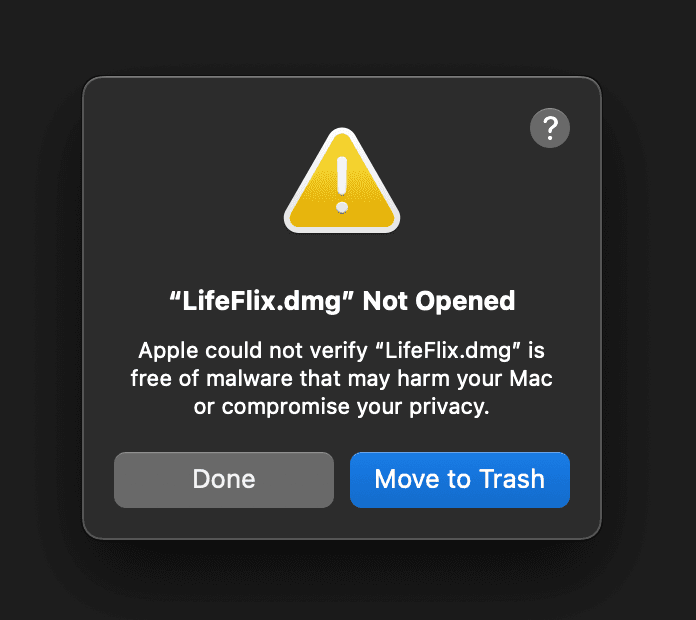
Learn how to bypass the "LifeFlix Not Opened" error on MacOS Sequoia
In recent MacOS versions, specifically Sequoia, Apple has removed the ability to easily Right-click (or control-click) and press Open to open an app from unverified developers, even if the app is signed with Apple, resulting in the below error when you try to open LifeFlix.
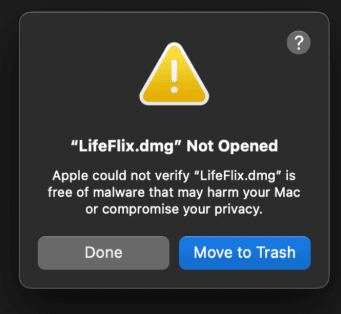
This change means that, unfortunately, you will have to manually go through system settings in order to allow LifeFlix to be installed. LifeFlix is working on getting verified so that you don’t have to go through all this hassle, but until then, here’s a step by step guide on resolving the issue, bypassing the warning and installing your favourite video importer and library.
1. On your Mac, click on the Apple icon to open the Apple menu > System Settings, then click Privacy & Security in the sidebar. (You may need to scroll down.)
2. Go to Security
3. Under the Allow applications from section, you will see a message stating “LifeFlix”was blocked to protect your Mac.
4. Click the Open Anyway button next to this message.
5. This button is available for about an hour after you try to open LifeFlix.
6. Enter your login password, then click OK.
Note: You will only have to do this once for LIfeFlix as it will be saved as an exception to your security settings and you can open it in the future by double-licking it.
Get Lifeflix Today!
Most Popular
Join Our LifeFlix Community
Enter Your Email Address to Sign Up for Exclusive Updates!
Related Blogs

About Oraphaned Media On LifeFlix Library
Learn how LifeFlix Library prevents lost footage with its Orphaned Media system, ensuring your tape imports stay safe even after crashes or faults.
Read More ➜

Best Media Library for Mac: Why LifeFlix Library Leads in 2026
Discover why LifeFlix Library is the best media library software for Mac in 2026, with smart AI tagging, powerful imports, and modern macOS organizati...
Read More ➜